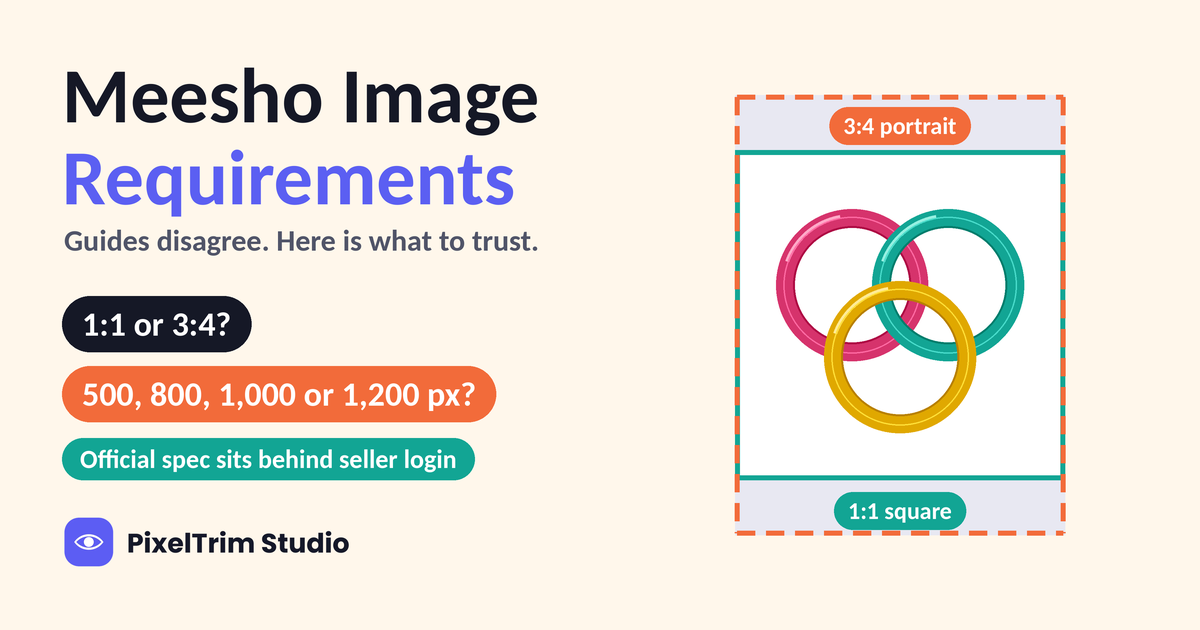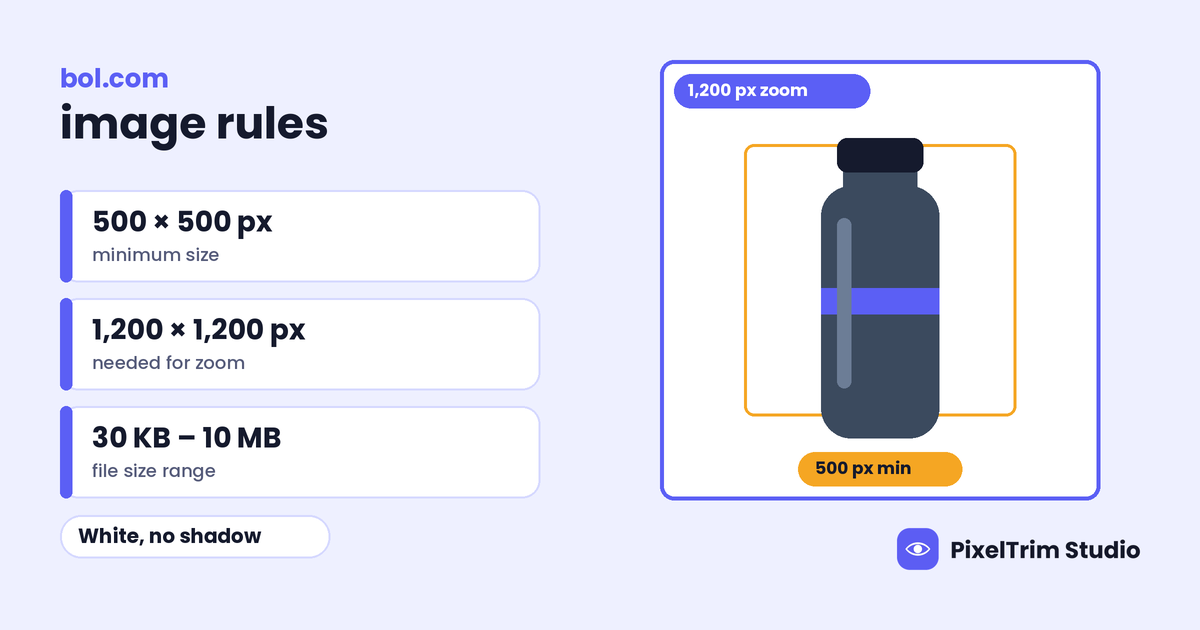
bol keeps its image rules on one short Partner Platform page, and the headline numbers are simple: at least 500 x 500 px, 1200 x 1200 px for zoom, 30 KB to 10 MB per file, and a white, neutral main image with no visible shadows. What most guides miss is a note at the bottom of that page. bol says it no longer enforces its image guidelines and only keeps enforcing the self-promotion rules. So which rules still block an upload, and which are now just advice?
This guide follows bol's English Partner Platform page at the time of our latest check. Where a third-party guide gives a different number, we label it. Category rules can change, so confirm anything unusual in your own seller account before a large upload.
bol.com Image Specs at a Glance
| Requirement | bol's rule |
|---|---|
| Minimum size | 500 x 500 px |
| Maximum size | 6000 x 6000 px |
| Zoom | 1200 x 1200 px or larger for the zoom function to work |
| File size | At least 30 KB and at most 10 MB |
| File format | Not listed on the page we opened; third-party guides say JPEG or PNG |
| Main image background | White and neutral, with no visible shadows |
| Main image content | Front of the item, out of its packaging, with no models, text, logos, icons or watermarks |
| Number of images | No fixed count; bol says to add as many as possible from different perspectives |
| Processing time | New or changed images are processed within 8 hours |
Which bol.com Image Rules Are Still Enforced?
Near the bottom of the rules page, bol says it no longer enforces its guidelines about images. Its reason is that the guidelines exist to improve visibility on bol and Google and have no direct consequence for the customer. It adds that it still enforces the rules on self-promotion in images. The same page says images outside the minimum or maximum limits trigger an error message. Put together, the rules fall into three groups:
| Group | What it covers | What bol says |
|---|---|---|
| Hard limits | 500 to 6000 px, 30 KB to 10 MB | An error message appears when an image is outside the limits |
| Photo guidelines | White neutral background, no shadows, front view, no models, out of packaging | No longer enforced, but meant to keep items visible on bol and Google |
| Self-promotion | Discount labels, watermarks, company names, logos, "buy now" or "free shipping" text, reviews, comparisons | Still enforced |
Treat the second group as advice that still affects visibility, not as something to skip. bol says the guidelines exist for visibility on bol and Google, and the main image is what shoppers see in the results. That reading is ours, not a bol statement.
Where the Numbers Disagree
bol's own pages agree with each other, but third-party guides do not always match them:
- File size cap. bol's rules page says 10 MB, and a feed-tool guide repeats the 30 KB to 10 MB range. One seller-tool blog says a maximum of 25 MB, which does not match the current page. Use 10 MB.
- Recommended size. A PIM vendor guide recommends 1500 x 1500 px or higher, but bol's page gives no recommended size. The only zoom figure bol states is 1200 px. Treat 1500 px or more as a sensible target, not a bol value.
- Image count. The same PIM guide says up to 8 images per listing. bol's page gives no count and says to add as many as possible, so we could not confirm a cap.
- File format. bol's rules page does not list formats, while third-party guides say JPEG or PNG. Export JPEG unless a cutout needs transparency.
Main Image Rules That Trip Sellers
- White space does not count. bol says white spaces are not counted toward the pixel limits, and it crops them automatically. Our reading: a small product on a big white canvas can still fall under 500 px, so make the product itself large in the frame.
- Front view only. The main image should be the front of the item. One image that combines the front, side and rear views is not allowed as the main image.
- No models. A photo with a model cannot be the main image, so apparel needs a flat lay or a ghost mannequin edit as the first image.
- Out of the packaging. The item should be shown out of its box, except for things like board games and media carriers. A photo of the packaged item is allowed only when the item is also visible out of it.
- No visible shadows. bol does not define the word, so treat soft studio shadows and reflections as shadows. A clean cutout on flat white is the reliable fix. Our pure white background guide shows how to check a background with a color picker, and the same check works for bol.
- No drawings or icons. An illustration, drawing, logo or icon cannot represent the item on the main image. Generic graphics and illustrations are also on the not-allowed list, except in the Hardware and Vehicles and Parts categories.
Building the Rest of the Image Set
- Different perspectives. Photograph the item straight from the front and as full-frame as possible, then add the relevant details.
- Delivery scope only. Show only the item and the accessories the customer receives.
- Lifestyle is for extra images. The white neutral background is expected on product photos, with the exception of lifestyle images that show the item in a setting.
- Label every view. When you upload, pick the best-fitting view for each image so bol can place it in order. bol sets the order from quality and customer data, and an exact one-to-one duplicate is not loaded.
- Check the live page. bol improves every image before it appears, and says this can affect color accuracy and sharpness. Look at the product page after the 8-hour processing window.
bol says its guidelines also help images stay visible on Google. If the same files feed Google Shopping, our Google Shopping image requirements guide covers its separate rules. If you also sell in Germany, the white-background rule is similar on Kaufland, but its size numbers differ, as our Kaufland image requirements guide explains.
One Master Spec That Works for bol
You do not have to guess where bol will draw the line. Build to the strictest reading of each number. The values below are our recommendation, not bol values.
- Export a 2000 x 2000 px square. It sits well above the 1200 px zoom figure and far below the 6000 px cap. The page gives no required aspect ratio.
- JPEG in sRGB, between 30 KB and 10 MB. A 2000 px product JPEG is normally well inside that range.
- Make the product large in the frame. Do not pad a small product with white space to reach a size.
- Main image: front view, flat white, no shadow, no packaging, model, text or logo.
- Add 4 or more extra images: angles, details, accessories and one lifestyle shot.
- Keep promotion off every image, including the extra ones: no discount labels, "free shipping" text, logos or watermarks.
- Label each view when you upload, then check the live product page.
Fixing Photos That Fail Without a Reshoot
Most failing bol sets need three jobs: a clean cutout on flat white, a size and format fix, and for apparel a model-free first image.
- Shadow, colored or cluttered background: a clipping path cuts the product out and places it on pure white. Pricing is $0.39 per image for simple products, $0.69 for medium and $0.99 for complex shapes.
- Too small, too large or wrong file type: image conversion resizes and reformats a batch to spec from $0.19 per image, or $0.39 when a color mode or DPI change is also needed.
- Model in the main image: a ghost mannequin edit removes the mannequin from a garment shot, from $1.49 per image for simple tops, $2.49 for medium garments and $3.49 for complex ones.
As a worked example, take one new product with 5 images, where 4 are product-only shots and 1 is a lifestyle shot that keeps its background. A simple clipping path on the 4 product shots costs $1.56 (4 x $0.39), and basic conversion on all 5 adds $0.95 (5 x $0.19), for $2.51 per product. A catalog of 10 colour variants at those rates comes to $25.10. Turnaround is 24 to 48 hours with one free revision round, and a combined quote is available for large batches.
Not sure your photos would pass on bol? Send 1-2 sample images and we will edit them to spec, free.
Pre-Upload Checklist for bol.com
- Every image at least 500 x 500 px and no larger than 6000 x 6000 px, with the product itself filling the frame
- Main image at 1200 px or more so zoom works, ideally exported at 2000 x 2000 px
- Each file between 30 KB and 10 MB, exported as JPEG in sRGB
- Main image on flat white with no visible shadow, shown from the front
- No model, packaging, text, logo, icon, watermark or drawing on the main image
- No discount label, "free shipping" text, review, comparison or company name on any image
- Extra images showing angles, details and accessories, with lifestyle shots kept out of the first slot
- Each image labelled with the right view
- Live product page checked after the 8-hour processing window
FAQ
What size should bol.com product images be?
bol's Partner Platform says images must be at least 500 x 500 px and at most 6000 x 6000 px, and that zoom works with images of 1200 x 1200 px or larger. White space does not count toward these limits. The page gives no required aspect ratio, so a 2000 x 2000 px square is a safe export.
What is the maximum file size for bol.com images?
bol's rules page says a file must be at least 30 KB and at most 10 MB. One seller-tool blog quotes 25 MB, which does not match the current page, so export under 10 MB.
Does bol still enforce its image guidelines?
bol says it no longer enforces its guidelines about images, such as the white background and front view, because they are meant to improve visibility on bol and Google. It still enforces the rules on self-promotion, and images outside the minimum or maximum size or file limits show an error message.
Can the bol.com main image have a model or lifestyle background?
No. bol's main image rules say a white, neutral background with no visible shadows, the front of the item, and no models, texts, logos, icons or watermarks. A lifestyle image is not allowed as the main image, but lifestyle shots can be used as extra images.
How many images can I add to a bol.com product?
bol's rules page gives no fixed count and tells sellers to add as many images as possible from different perspectives. A third-party PIM guide says up to 8, but we could not confirm that on a bol page, so plan 5 or more and check your upload screen.
How long does it take for new bol.com images to appear?
bol's add-or-change-image help page says additions and changes are processed within 8 hours and then show on bol. Check the live product page after that, because bol also improves each image for the platform, which can affect colour accuracy and sharpness.
Tags
Ready to get your images edited?
Upload 2 photos for a free trial edit — returned in under 24 hours.
Start free trial →