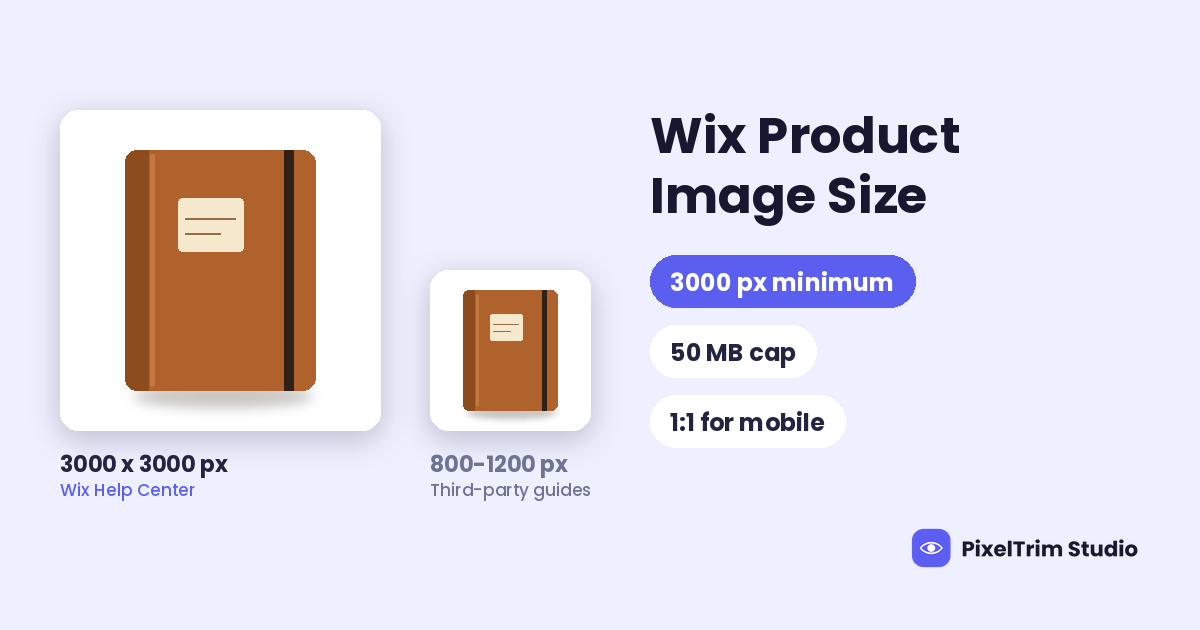
Search for Wix product image sizes and you get a pile of answers: 400, 800, 1000 and 1200 px, plus file targets of 500 KB, 1 MB, 8 MB or 10 MB. Meanwhile, Wix's own Help Center gives a much bigger number: a minimum resolution of 3000 x 3000 px. This guide labels every Wix product image number by its source, so you can tell a Wix rule from a blogger's habit.
Quick Answer: What Wix Product Images Need
- Resolution: 3000 x 3000 px is the minimum Wix lists for product images (Wix Help Center)
- Ratios: 16:9, 3:2, 4:3, 1:1, 3:4, 2:3 and 9:16 are listed, and 1:1 is recommended for mobile (Wix Help Center)
- File cap: 50 MB per image and 15 MB per GIF (Wix Help Center, media article)
- Formats: JPG, PNG, GIF, static WebP, AVIF, HEIC, TIFF and RAW are among those accepted (Wix Help Center)
- Color: Wix converts every upload to sRGB (Wix Help Center)
- Product video: AVI, MP4, MOV or MPEG, up to 50 MB (Wix Help Center)
Which Number Comes From Where
Wix splits its image rules across a few Help Center articles: one on adding product images, one on how store images are displayed, and one on supported media file types and sizes. The product images article exists in two versions, because Wix is rolling out a new product creation page, and both versions give the same resolution and ratios. Here is how the numbers line up.
| Number | What it is | Source type |
|---|---|---|
| 3000 x 3000 px | Minimum resolution for product images | Wix Help Center (official) |
| 1:1 | Recommended ratio for mobile | Wix Help Center (official) |
| 16:9, 3:2, 4:3, 3:4, 2:3, 9:16 | Other ratios Wix lists | Wix Help Center (official) |
| 50 MB | File size limit for images | Wix Help Center (official) |
| 15 MB | File size limit for GIFs | Wix Help Center (official) |
| 50 MB | Size limit for a product video | Wix Help Center (official) |
| 800, 1000, 1200 px | "Recommended" or "perfect" product size | Third-party guides |
| 400 px | "Minimum" image size | Third-party guides |
| 500 KB or 1 MB | File size target | Third-party guides |
| 8 MB or 10 MB | "Maximum upload" size | Third-party guides |
A Wix help page on gallery images that look cropped in the mobile view repeats the 3000 x 3000 px figure. We read that page through a search snippet, so treat it as a supporting mention, not a separate source.
Where the Numbers Disagree (and What to Do)
3000 px vs 800 to 1200 px
This is the biggest gap. Wix lists 3000 x 3000 px as the minimum resolution. Third-party guides cluster around 800, 1000 and 1200 px, and some guide sites give different figures on different pages of the same site. Wix words its figure as a recommendation for optimal display, and we did not find a rule that blocks a smaller file from uploading. So the safe reading is this: a smaller image will upload, but Wix says it is below the size it wants, and it may look soft when shown large.
For comparison, BigCommerce recommends 1280 x 1280 px and Squarespace calls 2500 px wide ideal. Wix's 3000 px is the highest of the three, which is why guides written for other platforms undersell it.
A quick sanity check: a typical 12-megapixel photo is 4000 x 3000 px, so cropping it square gives exactly 3000 x 3000 px. Most modern camera originals clear the bar. Photos that were already exported for a marketplace often do not.
50 MB vs 8 MB, 10 MB and 500 KB
These are not rivals. 50 MB is the most Wix accepts for an image, according to its Media article. The 8 MB and 10 MB figures in third-party guides do not match anything we found on the Wix pages we read. The 500 KB and 1 MB figures are speed advice, not limits. Wix also says it converts images to AVIF on your live site, so our reading is that you should upload a clean, high-quality file rather than chase the smallest possible one.
If You Also Sell on Marketplaces
Amazon, Etsy and others ask for different sizes, and many of them stop well below 3000 px. Keep your largest original, upload that to Wix, and export smaller copies for each marketplace. That is our suggestion, not a Wix rule. Our marketplace image size cheat sheet shows the sizes, ratios and file caps for 35+ platforms in one table. For another store builder with the same split between official numbers and guesses, see our Squarespace product image size guide and our BigCommerce product image requirements guide.
Square or Not? Crop vs Fit in a Wix Store
Wix gives you two ways to show product images: Crop and Fit. Crop trims every image to the same size, so if your uploads have different ratios, part of an image can be cut off. Fit shows the whole image at its own ratio, so a gallery only looks even if the originals share a ratio. Wix itself recommends uploading images with the same aspect ratio to get a clean gallery with nothing cut off.
Wix also says the Classic Product Page layout supports all image ratios, while other layouts look best with wider images, and that 1:1 is the recommended ratio for mobile. Because many shoppers browse on a phone, a square canvas is the safest default. That square default is our suggestion, not a Wix rule.
Pick one canvas and apply it to every product. Center the item with an even margin so Crop does not clip an edge. Mixed canvases are what make a Wix store grid look uneven, far more than any single pixel number.
Format: JPG, PNG, WebP and Everything Else
- JPG: best balance of quality and size for product photos
- PNG: use for transparent cutouts, logos and any image with text
- GIF: simple animation, with a 15 MB limit
- WebP: accepted as a static image. Animated WebP is not supported and converts to a static image
- AVIF, HEIC, TIFF, BMP and RAW: also accepted, according to the Wix Media article
Wix converts every upload to the sRGB color space so images look the same in all browsers. If your file is in another color space, the colors may shift after upload. The simple fix is to export in sRGB before you upload. If your originals are TIFF, PSD or CMYK, convert them first. Our image conversion explainer covers format, color mode and DPI in plain terms.
Wix Photo Studio vs Editing Before Upload
Wix has a built-in Photo Studio in the Products tab. According to the Wix article, it can crop images, adjust brightness, contrast and saturation, create transparent images, change the background color and remove the background. For a handful of products, that may be all you need.
The harder problem in a larger store is consistency: the same canvas, the same margin and the same clean edges across hundreds of photos. That is where editing before upload pays off, because every file arrives already matched to one spec.
Pre-Upload Checklist for Wix
- Choose one ratio for the whole store, and use 1:1 if mobile shoppers matter to you
- Export at 3000 x 3000 px where your originals allow it, and do not upscale small files
- Use JPG for photos and PNG for transparent cutouts or images with text
- Save in sRGB so colors do not shift after upload
- Stay well under the 50 MB image limit
- Set the Product Page and Gallery to Crop or Fit on purpose, then check one product on mobile
- Add alt text to each product image, and edit it per image if the angles differ, because the Copy to all option applies one text to every image
- Keep your original files, and upload only copies
Fixing Photos That Do Not Match the Spec
Most uneven Wix stores share the same causes: cluttered backgrounds, mixed canvases and originals that are too small or in the wrong color space. These are editing and conversion jobs, and they are cheaper to fix in one batch than product by product.
| Job | What it fixes | Price per image |
|---|---|---|
| Clipping path (Simple) | Plain background removal, clean edges | $0.39 |
| Clipping path (Medium) | Multi-part products, color correction | $0.69 |
| Clipping path (Complex) | Intricate shapes, holes, jewelry, footwear | $0.99 |
| Image conversion (Basic) | Format change, resize to spec, rename | $0.19 |
| Image conversion (Standard) | Format and color mode, DPI change | $0.39 |
As a worked example, take a Wix store with 30 products and 4 photos each, which is 120 images. A Simple clipping path on all of them is 120 x $0.39 = $46.80, and Basic conversion to one square canvas is 120 x $0.19 = $22.80. The total is $69.60, or $2.32 per product. Orders of 500+ images get a volume rate on request.
Editing cannot add detail that was never captured. If an original is far below 3000 px, a reshoot beats upscaling.
Not sure your photos would pass? Send two sample images for a free trial edit at our free trial form, returned in under 24 hours.
Frequently Asked Questions
What size should Wix product images be?
The Wix Help Center lists a minimum resolution of 3000 x 3000 px for product images and recommends a 1:1 ratio for mobile. Third-party guides that say 800 to 1200 px are not Wix numbers.
What is the maximum file size for Wix images?
The Wix Media article gives 50 MB for images and 15 MB for GIFs. Guides that quote 8 MB or 10 MB do not match the Wix pages we read.
Do Wix product images have to be square?
No. Wix lists several ratios, and the Classic Product Page layout supports all of them. Square is recommended for mobile and gives the cleanest grid, and Wix advises using the same ratio for every product image.
Will a smaller image than 3000 x 3000 px still upload?
We found no Wix rule that blocks it. Wix lists 3000 x 3000 px as the recommended minimum for optimal display, so a smaller file may look soft when shown large.
Which image formats does Wix accept?
JPG, PNG, GIF, static WebP, AVIF, HEIC, TIFF, BMP and RAW, among others. Animated WebP is not supported and converts to a static image.
Does Wix change my images after upload?
Yes. Wix converts uploads to the sRGB color space, and it says images are converted to AVIF on your live site. Export in sRGB so the colors stay as you edited them.
Tags
Ready to get your images edited?
Upload 2 photos for a free trial edit — returned in under 24 hours.
Start free trial →