A product photo can look sharp on your computer and soft in your Shopify store. Before you re-shoot anything, find out where the blur shows up, because that tells you whether the cause is the theme, the file or the cutout. This guide sorts Shopify blurry product images by symptom and labels each claim by source, so you can tell what Shopify documents from what is our own suggestion.
Quick Answer: Match the Symptom to the Cause
| Where it looks blurry | Most likely cause | Who fixes it |
|---|---|---|
| Soft for a second on page load, then sharp | Lazy loading, which Shopify describes as expected | Nobody, nothing to fix |
| Soft on the collection or home grid, sharp on the product page | Theme card size and the smaller auto-created version | Theme settings or a theme developer |
| Soft everywhere, including zoom and a new tab | Source file that is too small, upscaled or already compressed | You: reshoot or get the original |
| Blocky or muddy detail after upload | Over-compression before upload | You: re-export from the original |
| Fuzzy only around the product outline | Cutout edge that is feathered, AI-guessed or haloed | An editor: redo the cutout |
| Product looks small and soft, or one gallery image looks off | Canvas with too much empty space or mixed shapes | An editor: crop to one canvas |
1. Soft for a Second, Then Sharp: Lazy Loading
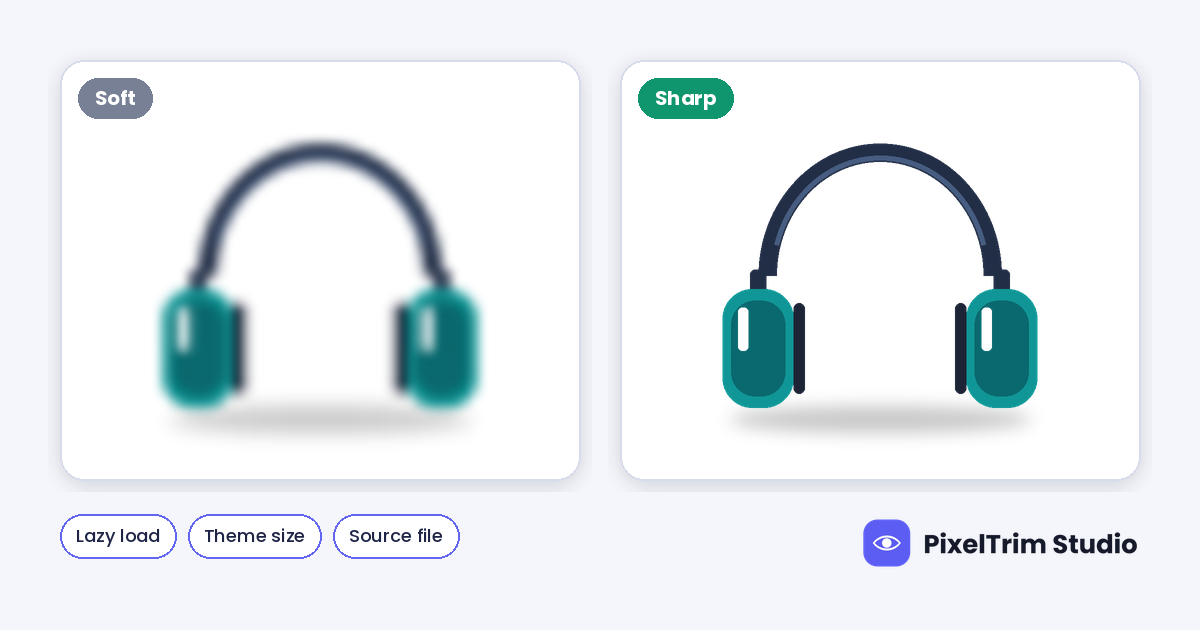
Shopify Help Center says images can look slightly blurry at first and then sharpen after a moment, and calls this expected. Themes load a smaller version first while the full-resolution image loads in the background, and the process typically finishes in less than a second (Shopify Help Center). If the image is still soft after the page has fully loaded, lazy loading is not your cause. Move on to the next section.
2. Soft on the Collection Grid, Sharp on the Product Page
When you add an image, Shopify says different sizes are created automatically for different areas of your theme. The large version might be used on the product page, while a compact version is used on collection templates (Shopify Help Center). So a grid card is always a smaller file than the product page image, by design. It looks soft when the card is shown larger than the version it was given, and that is more likely on phones that double the pixel density. Our arithmetic: a card that is 400 px wide on a 2x screen needs about 800 px of real image width to look sharp.
One merchant in a Shopify Community thread reported that a 2048 x 2048 px upload was served at about 823 x 823 px on a collection page. That is a forum report, not a Shopify statement, but it shows why a big upload does not guarantee a sharp grid. Which size your theme requests depends on the theme and its version, and Shopify says the same about which image dimensions work best.
What to do: check your theme settings for the product card or media size, read your theme documentation, and ask a theme developer or Shopify Partner if the grid stays soft. Shopify Help Center points to a Partner for changes beyond what the theme editor offers. This is the one cause that photo editing cannot fix, so do not re-edit a whole catalog until you have ruled it out.
3. Soft Everywhere: The Source File Is the Problem
If the image is soft on the product page, in zoom and in a new tab, the file itself is the cause. Open the original on your computer at 100% zoom. If it is soft there, no Shopify setting will sharpen it. These are the usual reasons (our experience, not a Shopify list):
- Too small for its display size: a 500 px image shown at 800 px is stretched by 60%, which looks soft
- Already compressed: supplier thumbnails, screenshots and files saved from chat apps or social posts are usually shrunk before you get them
- Re-saved many times: each JPEG export compresses the image again
- Missed focus or motion blur: the product, not the background, should be the sharpest part of the frame
Shopify's advice is to upload the best quality image you have. Product and collection images can go up to 5000 x 5000 px, and 2048 x 2048 px usually displays best for square product images (Shopify Help Center). Our Shopify product image size guide labels every number by source.
Editing cannot add detail that was never captured. AI upscalers can make a file bigger, but they invent the extra detail, so check the result at 100% before you trust it. If the original is far below 2048 px, a reshoot or a better file from the supplier beats a rescue.
4. Blocky or Muddy After Upload: Too Much Compression
Shopify says images are not compressed when you upload them, and that you do not need to compress them manually first. Upload the best quality images you can (Shopify Help Center). It also says images served through your theme might be compressed, and that Shopify picks the best file format for the visitor, such as WebP or AVIF where the browser supports it (Shopify Help Center). So your own heavy compression stacks on top of Shopify's delivery compression.
Squeezing a file toward a 500 KB target before upload is third-party speed advice, and it can leave visible blocks and soft detail. Our suggestion: export from the original file, never from an earlier export, at high JPEG quality, and let Shopify handle delivery. Shopify's Uploading images page recommends JPEG for product images and PNG for logos, line art and flat graphics. The product media page names PNG first, so the two Help pages differ, as our size guide explains.
5. Fuzzy Only Around the Outline: Check the Cutout
If the product body is crisp but the outline looks fuzzy, ringed or bright against a colored section, the cutout is the cause, not Shopify. Zoom to 200% on the edge. A feather radius set too high leaves a wide soft rim, and a one-click AI remover can chew thin parts like chains, straps and lace. Our white halo guide shows how to diagnose each type.
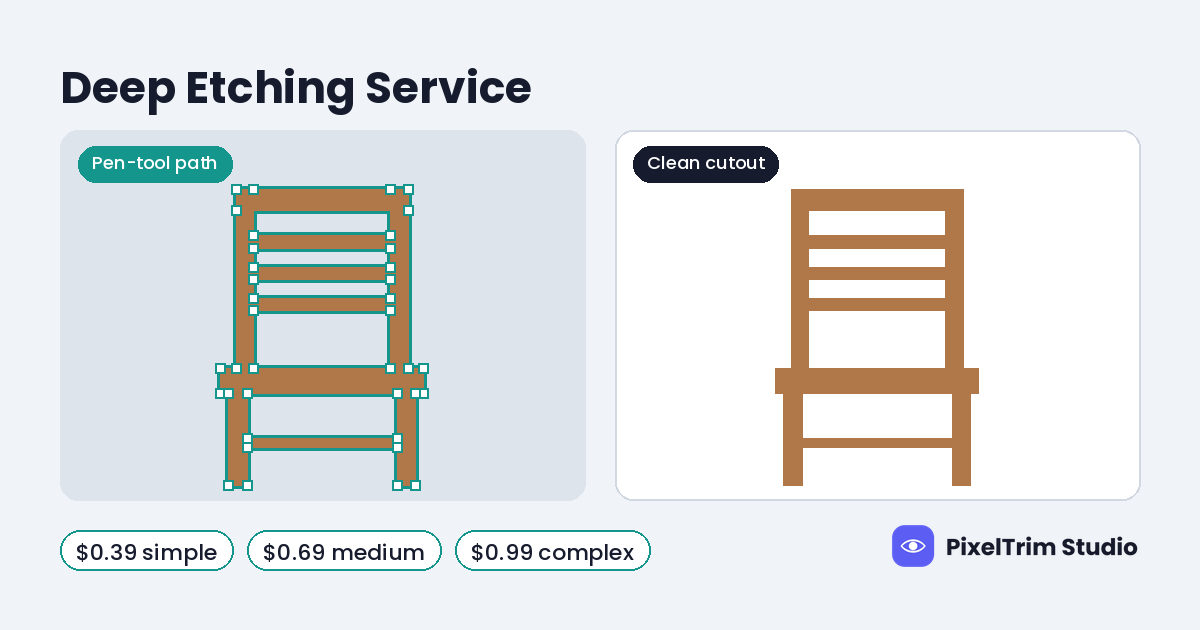
For hard-edged products the real fix is a clean hand-drawn path. Our clipping path service costs $0.39 (Simple), $0.69 (Medium) or $0.99 (Complex) per image. Hair, fur and soft fabric need masking instead of a hard path.
6. Small, Soft Product in a Big Frame: Check the Canvas
Look at how much of the frame the product fills. If it covers half the width of a 2048 px canvas, only about 1,024 px of real product detail is in the file. At 85% of the width it is about 1,740 px. The store shows both at the same card size, so the first product looks smaller and softer (our arithmetic). Crop so the product fills most of the frame with an even margin. Roughly 80% to 90% of the width is our suggestion, not a Shopify number.
Mixed shapes cause a second problem. Shopify says product images on collection pages show at different sizes unless you use a consistent aspect ratio for featured images. It also says some theme sections crop an image to fit when its aspect ratio differs from the area the section gives it (Shopify Help Center). A square, a portrait and a landscape in one gallery will not look equally sharp or equally framed. Pick one canvas for the whole store. Our bulk Shopify editing guide explains how a locked style guide keeps a large catalog consistent.
A 5-Minute Diagnosis
- Reload the product page and wait for it to finish loading. If the image sharpens within a second, it was lazy loading
- Compare the product page with the collection page on the same phone. Sharp on one and soft on the other points to the theme card size
- Open the image in a new tab (right-click, then Open Image in New Tab, the same step Shopify Help Center uses to check a file type) and compare its pixel size with your original
- Open the original at 100% zoom. If it is soft there, the source is the problem
- Zoom to 200% on the outline. A fuzzy rim means the cutout needs work
- Measure the product against the frame. As our rule of thumb, recrop if it fills less than about 70% of the width
What Editing Can and Cannot Fix
| Problem | Can editing fix it? | Price per image |
|---|---|---|
| Fuzzy or haloed cutout edge | Yes, redo it with a hand-drawn path | Clipping path: $0.39 Simple, $0.69 Medium, $0.99 Complex |
| Mixed canvases, wrong size or wrong format | Yes, resize or crop everything to one spec | Image conversion: $0.19 Basic, $0.39 Standard |
| Source file too small, or soft focus | No, reshoot or ask for the original | Not an editing job |
| Over-compressed upload | No, re-export from the original file | Not an editing job |
| Theme requesting a small version | No, theme setting or developer fix | Not an editing job |
As an illustration, not a quote: a store with 60 products and 4 photos each is 240 images. Resizing and cropping all of them to one 2048 x 2048 px canvas at the Basic conversion rate is 240 x $0.19 = $45.60. If 40 of them also need a new Simple cutout, that adds 40 x $0.39 = $15.60. The total is $61.20, about $1.02 per product. Orders of 500+ images get a volume rate on request. For the wider list of edits a Shopify store needs, see our Shopify product photo editing guide.
Pre-Upload Checklist
- Open the original at 100% zoom and confirm the product is sharp
- Choose one canvas for the whole store, and square if you are unsure
- Fill most of the frame with the product, with an even margin
- Export from the original file, not from an earlier export, at high JPEG quality
- Do not shrink the file toward a tiny size first, because Shopify says to upload the best quality you have
- Check one product page and one collection card on a real phone before you upload the rest
Not sure why your photos look soft? Send two sample images for a free trial edit at our free trial form, returned in under 24 hours.
Frequently Asked Questions
Why are my Shopify product images blurry on the collection page but sharp on the product page?
Shopify creates different sizes of each image automatically and uses a smaller version on collection templates. If your theme shows that card larger than the version it received, the image looks soft, especially on high-density phone screens. Check the card or media size in your theme settings, or ask a theme developer.
Why do my Shopify images look blurry for a second when the page loads?
Shopify Help Center describes this as expected lazy loading. Themes load a smaller version first and the full-resolution image follows, usually in less than a second. If the image stays soft after the page has finished loading, the cause is something else.
Does Shopify compress my product images?
Shopify does not compress images when you upload them. Images served through your theme might be compressed for delivery, and Shopify picks the best file format for the browser that requests the image, such as WebP or AVIF when supported.
Should I compress images before uploading to Shopify?
Shopify says images do not need to be compressed manually before upload and advises uploading the best quality images you can. Heavy compression before upload can leave blocky detail that delivery compression then builds on.
What size should I upload to avoid blurry images on Shopify?
Shopify says product images can be up to 5000 x 5000 px and that 2048 x 2048 px usually displays best for square product images. A sharp larger original beats an upscaled small one, so check the file at 100% zoom before you upload it.
Can photo editing fix a blurry product photo?
Editing can fix a fuzzy cutout edge, an oversized empty canvas and mixed image shapes. It cannot add detail to a soft or tiny original, so reshoot or ask the supplier for the original file. A theme that requests a small version needs a theme setting or developer fix.
Tags
Ready to get your images edited?
Upload 2 photos for a free trial edit — returned in under 24 hours.
Start free trial →