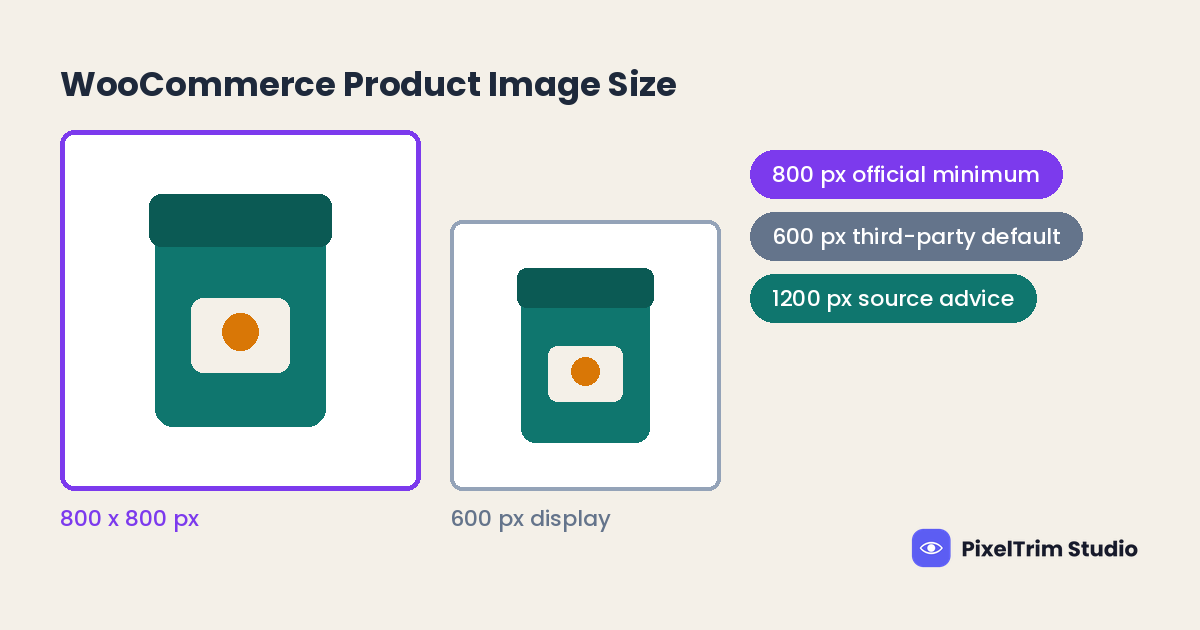
Search for WooCommerce product image sizes and you get a pile of answers: 600 px, 800 px, 1200 px, 300 px thumbnails and 100 px gallery images. The reason is simple. WooCommerce's own documentation gives one number for uploads, an 800 x 800 px minimum, and the rest come from theme settings and third-party guides. This guide labels every WooCommerce product image number by its source, so you can tell a WooCommerce recommendation from a theme habit or a blogger's default.
Quick Answer: What WooCommerce Product Images Need
- Upload size: at least 800 x 800 px, and larger is better for products with fine detail (WooCommerce documentation)
- Image types: every upload is used as a single product image, a catalog image and a thumbnail (WooCommerce documentation)
- Retina screens: set sizes to double what your theme renders (WooCommerce documentation)
- After any change: regenerate shop thumbnails so older images update (WooCommerce documentation)
- Shape: thumbnail cropping is 1:1, custom or uncropped (WooCommerce documentation)
- File size cap: not stated on the WooCommerce pages we read, so your hosting upload limit decides
Which Number Comes From Where
WooCommerce spreads its image guidance across a few documentation pages: one on adding product images and galleries, one on the Customizer product image settings, and one on fixing blurry images. None of the pages we read lists default pixel widths for the three image types. Those defaults come from third-party guides. Here is how the numbers line up.
| Number | What it is | Source type |
|---|---|---|
| 800 x 800 px | Minimum upload size, renders well as single, catalog and thumbnail image | WooCommerce documentation (official) |
| 800 x 800 px | Largest single product image in the Storefront theme example, needed for zoom | WooCommerce documentation (official, theme example) |
| 324 x 324 px and 46 x 46 px | Catalog image and thumbnail as rendered in the same example | WooCommerce documentation (official, theme example) |
| 2x rendered size | Setting for sharp images on retina screens | WooCommerce documentation (official) |
| 600 px | Single product image default width | Third-party guides |
| 300 px | Catalog image default width, square crop | Third-party guides |
| 100 x 100 px | Gallery thumbnail default | Third-party guides |
| 800, 600 and 150 px | Suggested single, catalog and gallery thumbnail settings | Third-party guides |
| 1200 x 1200 px | Suggested source image size | Third-party guides |
Where the Numbers Disagree (and What to Do)
800 px vs 600 px vs 1200 px
These numbers answer two different questions. 800 x 800 px is what WooCommerce says to upload. The 600 px, 300 px and 100 px figures are display widths that third-party guides report as WooCommerce defaults, so they describe what the store generates from your upload, not what you should upload. A 1200 px source is a third-party suggestion that leaves room for retina screens and zoom. WooCommerce itself only says that larger images are better for fine detail, so treat 800 px as the floor and 1200 px as a reasonable target, not a rule.
Customizer settings vs your theme
WooCommerce's own pages word this differently. One Customizer page says its Product Images settings do not apply to the single product image, while the blurry-images guide tells you to set the main image width there. The newer product images page lists single image width, thumbnail width and thumbnail cropping together. The safe reading is that your theme decides: a theme can set its own widths, which hides the matching controls in the Customizer. On classic themes the path is Appearance > Customize > WooCommerce > Product Images. On block themes, adjust image dimensions in the template under Appearance > Editor.
The Three WooCommerce Image Sizes
| Image | Where it appears | Storefront example (rendered) | Third-party default |
|---|---|---|---|
| Single product image | Main image on the product page | 800 x 800 px | 600 px wide, uncropped |
| Catalog image | Shop page, category pages, related products, up-sells and cross-sells | 324 x 324 px | 300 px wide, square crop |
| Thumbnail | Cart, widgets and gallery thumbnails under the main image | 46 x 46 px | 100 x 100 px (gallery) |
Uploaded images are resized to match the values in your settings. WooCommerce's own example: with a 100 x 100 px setting, a 300 x 600 px upload becomes 100 x 200 px. You can also hard-crop, which forces the exact size by cropping instead of distorting the image.
Square, Custom or Uncropped?
For thumbnails, WooCommerce gives you three cropping options: 1:1 square, Custom with a ratio you enter, and Uncropped, which shows images as they are. Uncropped is where stores go uneven: a tall product, a wide product and a square product sit side by side in the same shop grid at different heights.
Pick one canvas and apply it to every product. Square is the safest default (our suggestion, not a WooCommerce number), because it keeps the product grid even. Center the product with an even margin so a crop never clips an edge. Our marketplace image size cheat sheet shows how square, portrait and landscape rules differ across 35+ platforms, which helps if you also sell outside your own store.
Sharp on Retina and Zoom
WooCommerce says that for sharp images on retina displays you should set sizes to double what your theme renders. If your theme shows an image at 80 x 80 px, set it to 160 x 160 px. It also warns that larger images take longer to load, so check which devices your customers actually use before doubling everything.
Zoom adds a second reason to upload big. In the Storefront theme example, the main image renders smaller than 800 x 800 px on screen, but 800 x 800 px is still required for the zoom effect. A 1200 px source gives zoom more detail to work with. That 1200 px figure is third-party advice, so test one product before you re-export a whole catalog.
Regenerate Thumbnails After Any Change
This is the step most stores skip. WooCommerce says that any time you activate a new theme or change image dimension settings, you need to regenerate previously created thumbnails. New uploads use the new settings straight away, but older images keep their old sizes until you do.
- Change the size or cropping settings, or switch your theme
- Go to WooCommerce > Status > Tools
- Click Regenerate next to Regenerate shop thumbnails
- Open a shop page and one product page on a phone and a desktop to check the result
File Size and Format
The WooCommerce pages we read do not give a file size cap or a list of accepted formats for product images. The only upload limit WooCommerce mentions is your hosting provider's, in its section on gallery videos. So there is no WooCommerce number to quote here, and everything below is our practical suggestion, not a WooCommerce rule.
- JPG: best balance of quality and file size for product photos
- PNG: use for transparent cutouts, logos and any image with text
- Color: save in sRGB so colors look the same in every browser
- Weight: compress before upload, because heavy files slow the product page more than a few extra pixels help
If your originals are TIFF, PSD or CMYK, convert them first. Our image conversion explainer covers format, color mode and DPI in plain terms.
How WooCommerce Compares With Other Store Builders
WooCommerce has the lowest headline number of the store builders we have covered, but it is a minimum, not a target. Here is how the official figures line up.
| Platform | Size guidance | Our guide |
|---|---|---|
| WooCommerce | 800 x 800 px minimum upload | This guide |
| BigCommerce | 1280 x 1280 px recommended | BigCommerce product image requirements |
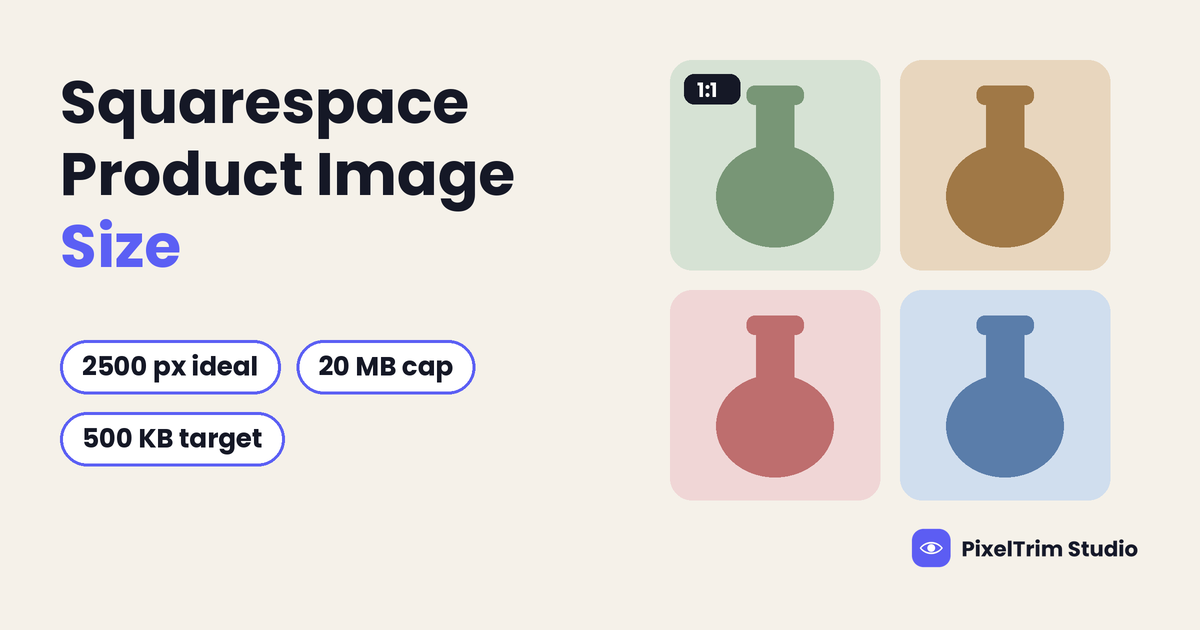
| Squarespace | 2500 px wide ideal | Squarespace product image size |
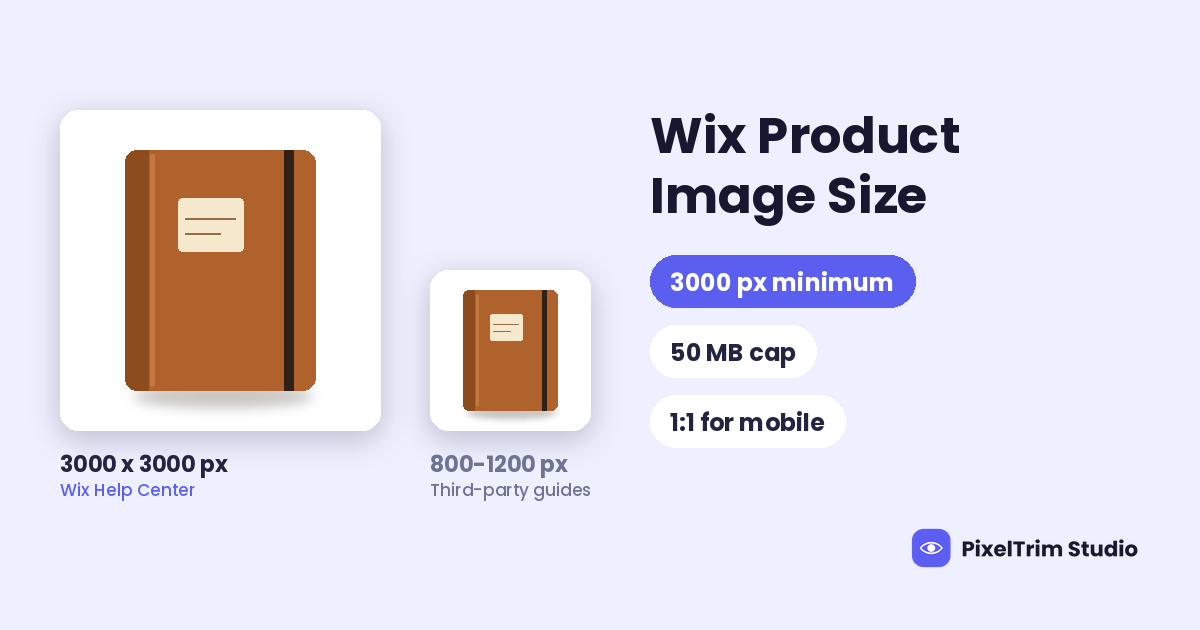
| Wix | 3000 x 3000 px minimum | Wix product image size |
If you move a catalog between platforms, keep your largest original and export smaller copies for each one. That is our suggestion, not a platform rule.
Pre-Upload Checklist for WooCommerce
- Choose one ratio for the whole store before you export anything
- Export at 800 x 800 px at the very least, and use 1200 px if your originals allow it
- Check what your theme actually renders with your browser's Inspect tool, then set sizes to match or exceed it
- Use JPG for photos and PNG for transparent cutouts or images with text
- Save in sRGB and compress each file before upload
- Regenerate shop thumbnails after any size or theme change
- Check a shop page and a product page on mobile before you upload the rest
Fixing Photos That Do Not Match the Spec
Most uneven WooCommerce stores share the same causes: cluttered backgrounds, mixed canvases and originals that are too small. These are editing and conversion jobs, and they are cheaper to fix in one batch than product by product.
| Job | What it fixes | Price per image |
|---|---|---|
| Clipping path (Simple) | Plain background removal, clean edges | $0.39 |
| Clipping path (Medium) | Multi-part products, color correction | $0.69 |
| Clipping path (Complex) | Intricate shapes, holes, jewelry, footwear | $0.99 |
| Image conversion (Basic) | Format change, resize to spec, rename | $0.19 |
| Image conversion (Standard) | Format and color mode, DPI change | $0.39 |
As a worked example, take a WooCommerce store with 60 products and 3 photos each, which is 180 images. A Simple clipping path on all of them is 180 x $0.39 = $70.20, and Basic conversion to one square canvas is 180 x $0.19 = $34.20. The total is $104.40, or $1.74 per product. Orders of 500+ images get a volume rate on request.
The same consistency principle applies on every store platform. Our Shopify product photo editing guide explains why a uniform catalog matters more on your own store than on a marketplace. Editing cannot add detail that was never captured, so if an original is far below 800 px, a reshoot beats upscaling.
Not sure your photos would pass? Send two sample images for a free trial edit at our free trial form, returned in under 24 hours.
Frequently Asked Questions
What size should WooCommerce product images be?
WooCommerce recommends uploading images at least 800 x 800 px, and larger is better for products with fine detail. Figures like 600 px or 300 px are display widths from third-party guides, not upload sizes.
What are the default WooCommerce image sizes?
Third-party guides list 600 px wide for the single product image, 300 px wide with a square crop for catalog images, and 100 x 100 px for gallery thumbnails. The WooCommerce pages we read do not list defaults, and your theme can override them.
Why are my WooCommerce product images blurry?
Usually the uploaded image is too small or your size settings are lower than what the theme renders. WooCommerce suggests uploading at least 800 x 800 px, setting sizes to match or exceed the largest size your theme shows, and then regenerating shop thumbnails.
How do I change the WooCommerce product image size?
On a classic theme, go to Appearance > Customize > WooCommerce > Product Images. On a block theme, adjust image dimensions in the template under Appearance > Editor. Then regenerate shop thumbnails under WooCommerce > Status > Tools.
Do WooCommerce product images have to be square?
No. Thumbnail cropping can be 1:1, custom or uncropped. A single ratio across the whole catalog gives the cleanest shop grid, and square is the safest default.
What is the maximum file size for WooCommerce images?
We found no cap on the WooCommerce pages we read. Your hosting provider's upload limit applies, so keep files compressed and well below it.
Tags
Ready to get your images edited?
Upload 2 photos for a free trial edit — returned in under 24 hours.
Start free trial →